
Shopify product listing apps do different things: import structured catalog data, improve products already in Shopify, or create new product drafts from photos. An “AI product listing app” may refer to any of these workflows.
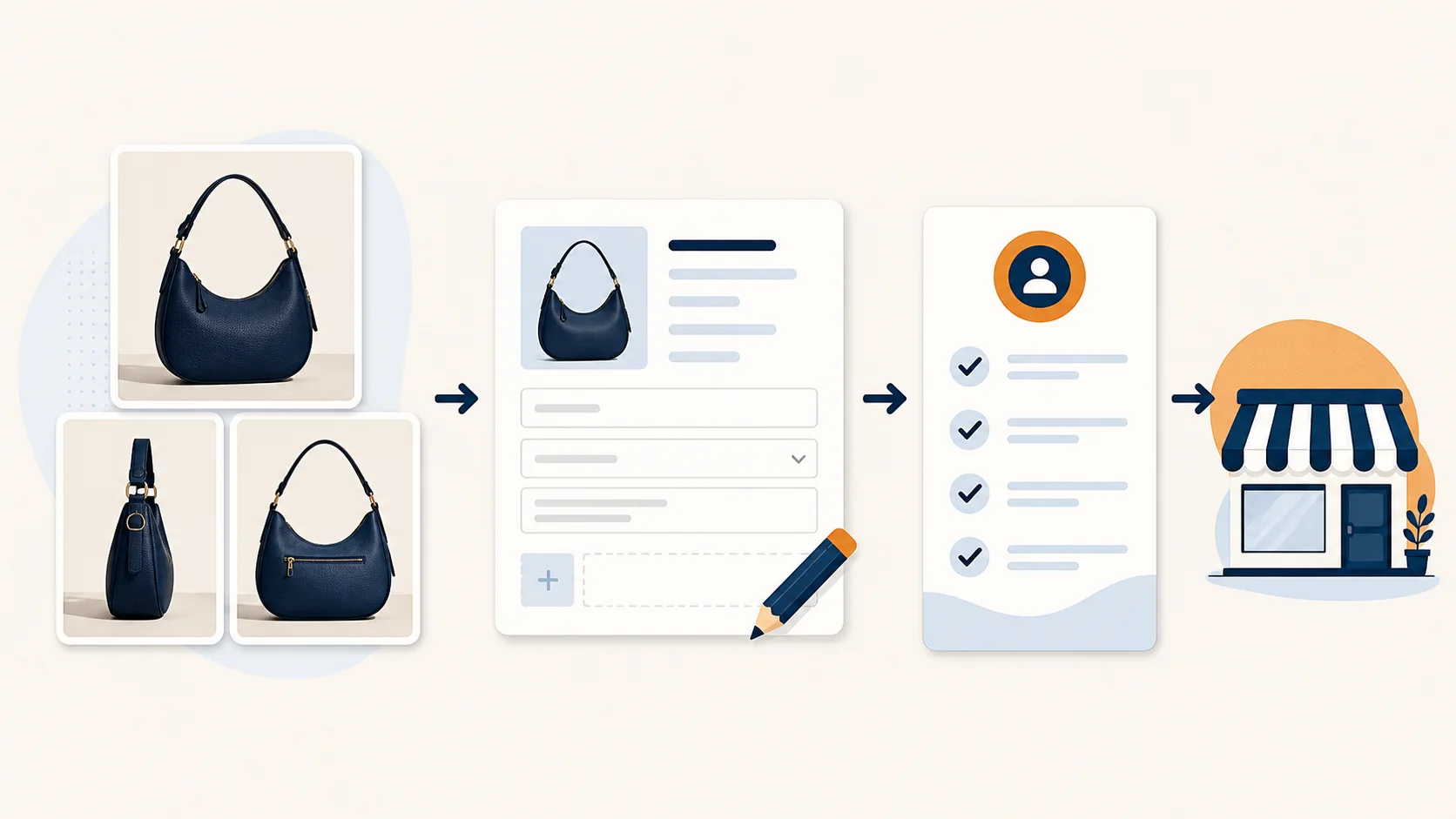
If photography is finished but product entry is the bottleneck, focus on whether the app starts from an image set and produces a reviewable product draft.
Quick Answer
Choose the tool that matches what you already have:
- A few complete products: enter them manually in Shopify.
- A genuinely similar existing product: duplicate it and carefully review copied fields.
- Structured product data in a spreadsheet: use Shopify's product CSV import.
- Existing products that only need images: use a bulk image uploader.
- Photos ready but listings missing: use a photo-to-listing app that creates editable drafts for review.
- Products already exist but descriptions are thin: use Shopify Magic or a description-focused tool.
What to Compare Before Installing a Shopify Product Listing App
1. Does It Start From the Input You Actually Have?
Some apps start with an existing Shopify product. Others start with a prompt, spreadsheet, supplier feed, or product URL. If your real starting point is a folder of product photos, confirm that the app can begin there without making you retype the product first.
2. Does It Create a New Product or Edit an Existing One?
An app designed to enrich existing descriptions might not create new products. A bulk image tool might attach media without creating titles or product structure. Confirm whether the app creates a new editable listing, updates an existing product, or supports both.
3. What Does “AI Product Listing” Include?
The phrase may mean a generated description alone or a broader draft with a title, description, tags, category suggestions, SEO fields, and the uploaded images attached.
Check what the app inferred and what it expects you to supply. Generated fields should remain editable. Facts that photos alone cannot establish—such as price, inventory, materials, or dimensions—should remain blank or be clearly flagged for review.
4. Can You Review Before Anything Goes Live?
For most stores, the safest default is an editable draft. Reviewing before publishing makes it easier to catch a misidentified product, unsupported material claims, poorly grouped variants, weak titles, and errors in sales-channel or inventory settings.
Before enabling automatic publishing, verify that price, inventory, variant structure, sales channels, and non-visual product claims come from dependable data.
5. How Does It Handle Multiple Images?
Many products need a front view, side view, detail view, scale reference, packaging image, or condition photo. Ask whether the app treats those images as one product set or risks turning each image into a separate listing.
For frequent catalog turnover, keep each product's images together before upload. If an app supports batch imports, verify how it groups images and how you correct a mismatch before publishing.
6. How Does It Handle Variants and Unique Products?
A boutique might group one style photographed in several colors as variants. A vintage seller, by contrast, may need a separate listing for each unique item and its condition-specific photos.
Confirm that the app lets you decide whether related items belong in one variant product or in separate listings. If that choice is unclear, work through the Shopify variants versus separate products checklist.
7. How Long Does a Real Batch Take?
Do not judge throughput from one easy product. Time a small, representative batch from photo upload to reviewed drafts. If the app handles one product at a time, include every repeated upload and review step. If it offers a batch queue, check how it shows progress, failures, and retries.
If your target is a large photo-ready batch, compare the workflow against the fastest way to list 100 Shopify products from photos.
8. What Will a Normal Month Cost?
Estimate how many new products you process in a normal month and in your busiest month. Check whether the plan limits products, image sets, AI generations, or exports—and what happens when you reach that limit. Use those figures to compare the plans' monthly costs.
9. Are Permissions and Privacy Proportionate?
Before installation, Shopify shows the store data and personal information an app requests. Review whether those permissions make sense for the app's job, and read the linked privacy policy. After installation, Shopify also lets merchants review an app's activity and permissions from the app's about page.
When a Photo-First Workflow Becomes Useful
Photo-first apps suit stores where photo-ready inventory arrives faster than a small team can write titles, descriptions, and tags. This often happens in boutiques with weekly new arrivals and resale shops processing one-off items.
The weekly Shopify new-arrivals workflow follows four steps:
- Photograph the new inventory and keep each product's images together.
- Turn each image set into an editable listing draft.
- Add or verify price, inventory, SKU, variants, and product claims.
- Publish the approved products and place them in New Arrivals.
Where Synctually Fits
Synctually handles one product at a time. You upload one to five images of that product, optionally add product notes or keywords, and choose any needed settings for description format, product status, variants, or a disclaimer. Synctually then generates an editable draft with a title, description, tags, and SEO fields.
On the review screen, you confirm price, inventory, variants, sales channels, SKU, barcode, and wording before publishing.
If you already have structured data, only need images attached, or need a batch queue, choose a tool built for that workflow.
If your photos are ready but listings are missing, try Synctually's photo-to-listing workflow with one real product set. Compare the time to a publish-ready draft and the corrections it needs with your current listing method.
Frequently Asked Questions
What is a Shopify product listing app?
A Shopify product listing app helps create, update, import, enrich, or organize product information. The category includes several different workflows, so confirm whether the app creates new products, improves existing descriptions, imports structured data, or only attaches images.
Can Shopify create a complete product listing from a photo?
Shopify's native product editor still expects the merchant to add product details. A separate photo-to-listing workflow can use images to start an editable listing, but the merchant must review information the image cannot prove. See the detailed answer to whether Shopify can create listings directly from product images.
How should I test a Shopify listing app?
Choose one representative product with its real photo set and listing complexity. Measure the total time from input to a correct, publish-ready draft, review the requested permissions, and confirm how pricing scales to your normal monthly catalog volume.